
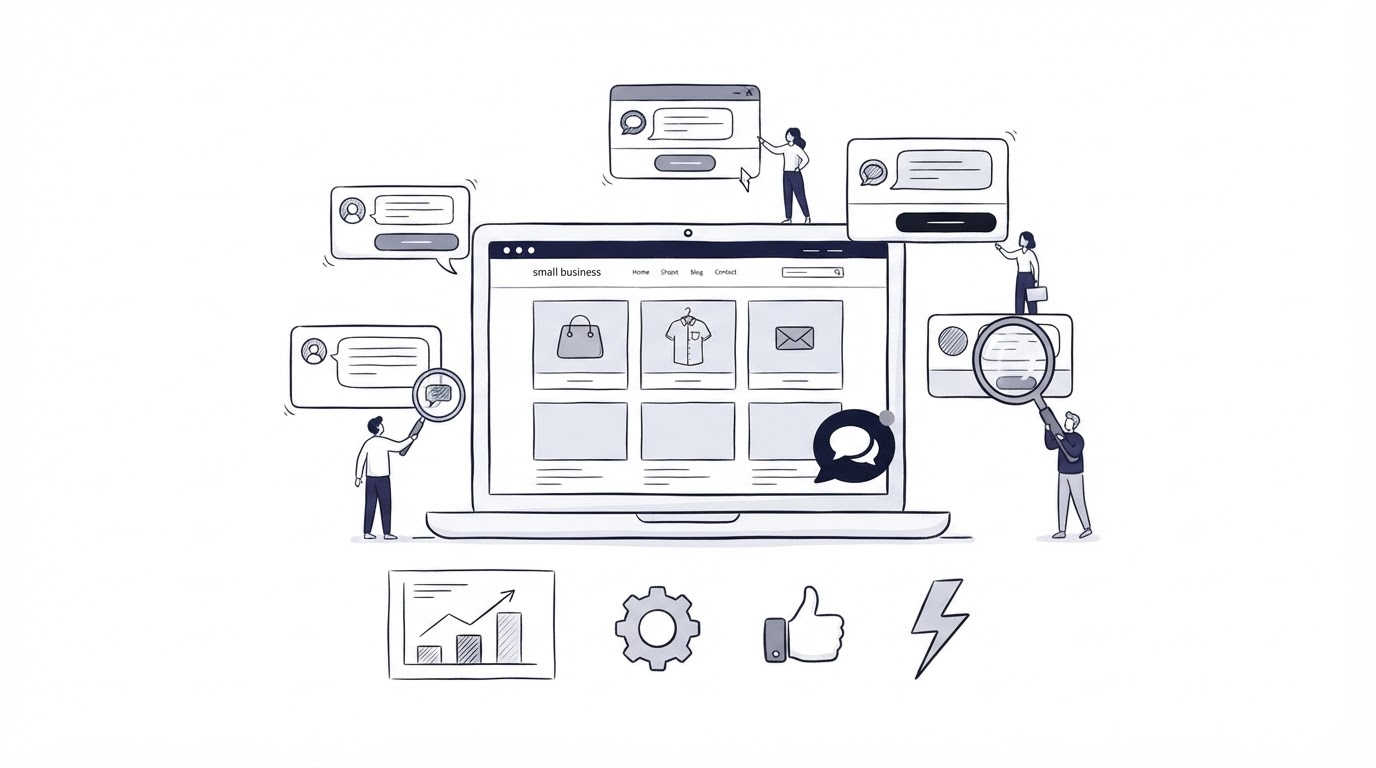
A visitor reaches your pricing page, has one last question about setup, and leaves because nobody can answer quickly. A chat widget can keep that conversation on the site, yet an oversized system can create a second inbox, missed handoffs, and vague ownership.
For small teams, live chat for small business works best when it has clear coverage hours, a simple routing process, and a path from repeated questions to self-service content. Cajobo brings live chat, a knowledge base, and feedback collection into one support workspace, which helps a lean team keep the customer context together.
Quick answer: how to choose live chat for a small business
- Define the pages and customer moments where chat can help most.
- Set realistic availability and an away-message workflow before installing the widget.
- Choose core features: shared conversations, visitor context, routing, saved replies, and searchable history.
- Connect chat to a knowledge base so common questions have an immediate self-service route.
- Assign owners, response targets, and escalation rules for every incoming conversation.
- Review chat transcripts monthly and turn recurring friction into documentation, product feedback, or site improvements.
Start with the customer question your live chat needs to solve
Install chat to support a specific point in the buyer or customer journey. A small service business may need help converting quote requests. A SaaS team may need to answer implementation questions on its trial signup page. An ecommerce shop may need to resolve delivery or sizing questions before checkout.
Start by reviewing the last 30 to 90 days of support emails, contact-form submissions, and sales calls. Group the messages by page, question, and urgency. This gives you a focused starting point for live chat for small business instead of placing a widget across every page by default.
Consider a fictional example: Northstar Bookkeeping, a three-person firm, receives repeated questions from visitors on northstarbookkeeping.com/pricing about monthly close timelines and onboarding. The owner initially places chat on every page. The team soon spends time answering generic career inquiries and vendor pitches. A better configuration limits proactive chat prompts to /pricing and /services/monthly-close, while the contact page guides general requests to a form.
That decision protects staff time and places live help where it can affect a real customer decision.
Set live chat availability before you add a widget
Fast response expectations form quickly. Publish the hours when a person is available, then write an away response for every other time. The away response should confirm receipt, explain when the team replies, and offer the best next action, such as reading a relevant article or leaving an email address.
For Northstar Bookkeeping, the initial schedule could be 10:00 a.m. to 2:00 p.m. on weekdays. One team member checks chat during that window, while messages outside it enter a shared queue for the next business day. The owner avoids promising instant answers during client work.
Use a practical response standard that your team can meet. For example, reply to active chats within 10 minutes during coverage hours and follow up on offline messages by the next business day. Record this in a short internal playbook. Consistency builds more trust than an ambitious promise that falls apart during busy weeks.
Build an away message that moves the conversation forward
A useful away message includes three pieces of information:
- The next expected reply window.
- A link to the most relevant help content.
- A request for the detail needed to answer efficiently, such as an order number, account email, or service type.
For a business handling personal data, keep the first chat prompt limited to information needed for support. The EU General Data Protection Regulation, including Article 13 information requirements provides a useful reference for organizations serving people in the EU. Add a concise privacy notice near the chat entry point when your circumstances require one.
Features to look for in live chat for small business
Small businesses benefit from a focused set of features. Extra controls create more configuration work, more training, and more ways for a conversation to fall through the cracks.
| Feature | Why a small team needs it | What to check during evaluation |
|---|---|---|
| Shared conversation inbox | Anyone on duty can see the full thread and pick up where a teammate left off. | Confirm that assignments, status, and ownership are visible at a glance. |
| Visitor and conversation context | The agent can see the page a visitor is viewing and prior messages where available. | Test whether the context remains available after a handoff. |
| Offline capture | Visitors can leave a message when nobody is available. | Send a test message outside coverage hours and verify the owner receives it. |
| Saved replies | Staff can answer frequent questions quickly while keeping tone consistent. | Create three real replies and check whether they are easy to find during a live conversation. |
| Knowledge base links | Repeated questions can move to a detailed, maintained answer. | Confirm agents can share help articles without leaving the conversation workflow. |
| Basic conversation history | The team can spot repeat contacts and recurring issues. | Search for a past test conversation by name, email, and topic. |
Keep the widget accessible as well. A keyboard user should be able to open it, move through its controls, and close it without getting trapped in the interface. The W3C dialog pattern guidance explains the keyboard and focus behavior to look for when testing a chat window.
Northstar Bookkeeping learned this during its trial. The first widget looked polished but buried old conversations behind a separate agent view. Staff began replying twice to the same customer after a shift change. A shared inbox with clear ownership solved the actual operational issue.
Test the live chat widget on your own website
A live chat demo tells you very little about its behavior on your pages. Test it in a staging environment or install it with limited visibility first. Open the site on a phone, tablet, and desktop browser. Check whether the launcher blocks a checkout button, cookie controls, mobile navigation, or accessibility controls.
Run a small test script with another team member. Start a conversation from a key page, assign it, reply from a second device, go offline, and leave a follow-up message. Then locate the transcript and assess whether a new staff member could understand the issue without asking the customer to repeat it.
For Northstar Bookkeeping, the initial bottom-right placement covered the mobile "Book a consultation" button. The team moved the launcher slightly higher and suppressed it on the booking form, where visitors already had a clear conversion path. Test interactions like these before the widget reaches all visitors.
Create a small-team workflow for live chat conversations
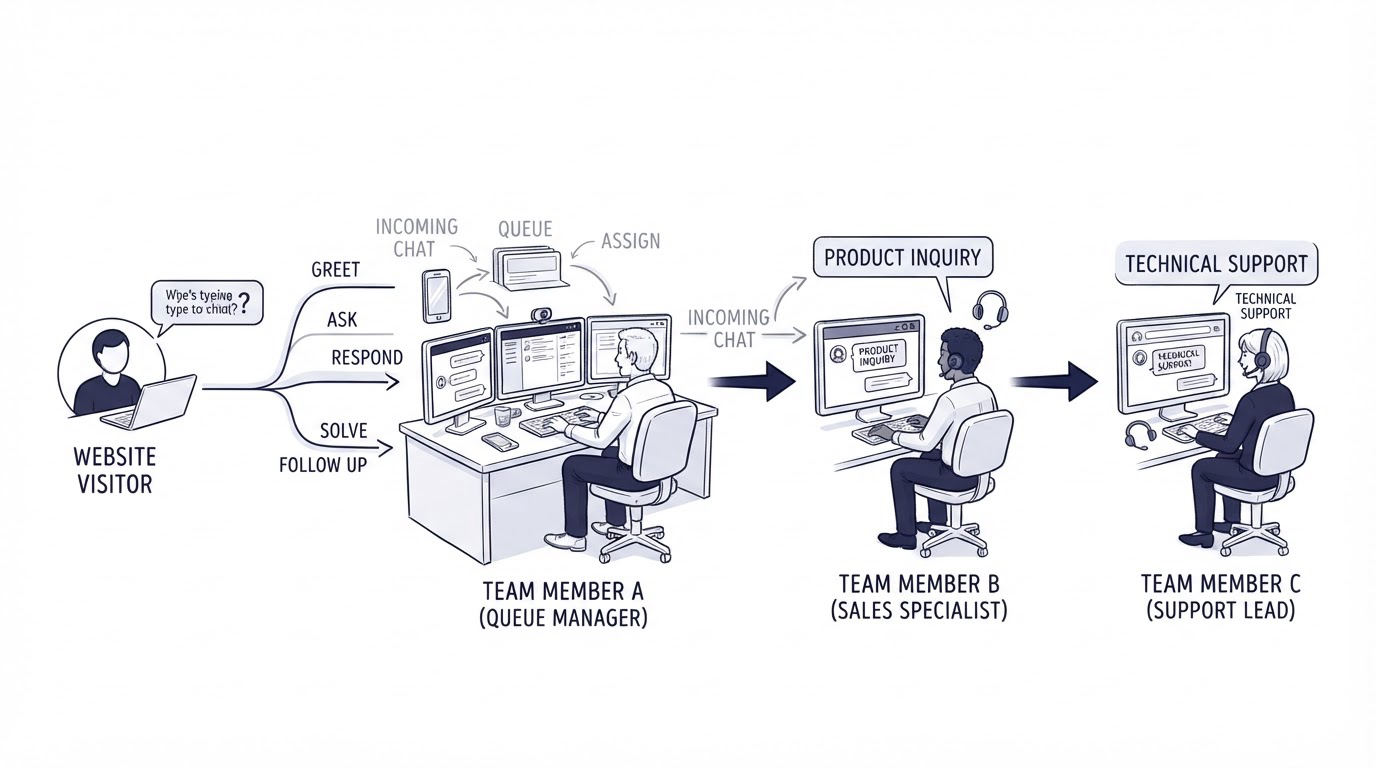
A widget only works as well as the people and process behind it. Give every conversation one active owner. The owner either resolves it, hands it to a named teammate, or converts it into a follow-up task with a clear due date.
Set three categories from the beginning: sales question, customer support request, and product or website feedback. Categories reveal where demand is coming from and help you decide which messages deserve a reusable answer.
When a chat requires specialist input, acknowledge it promptly, collect the relevant detail, and set a follow-up expectation. Avoid passing a customer through several people in the same thread. One person should remain responsible for the final response.
A shared-inbox process reduces duplicate replies and unattended messages. See how shared inbox software improves customer support response times for a deeper look at ownership, assignment, and handoffs.
Connect live chat, help articles, and customer feedback in Cajobo
Running chat separately from self-service content and feedback creates avoidable administrative work. Cajobo's useful point of view comes from treating these as connected steps in one customer-support loop.
First, add the Cajobo Live Chat widget to the pages where live help has a clear purpose. Set availability, decide who monitors the shared conversation queue, and prepare a few replies for your highest-volume questions.
Next, when a question appears repeatedly, create or improve the relevant article in the Cajobo Knowledge Base. An agent can then guide the customer to a durable answer instead of rewriting the same explanation in every conversation. This also gives your team an editorial backlog based on actual customer language. Use this guide on creating a knowledge base that reduces customer support tickets when you are deciding which articles to publish first.
Finally, capture feedback when a chat reveals an unmet expectation, confusing page, or missing feature. The Cajobo Feedback area gives that input a place beyond an individual conversation. Northstar Bookkeeping could tag repeated requests for weekend appointment slots, review the pattern at the end of the month, and decide whether to adjust its service model or clarify availability on the site.
The workflow keeps support conversations useful after the chat window closes.
Measure whether your live chat is helping the business
Track a few measures that influence decisions. Start with first-response time during stated coverage hours, the number of conversations answered, the number that need follow-up, and the most frequent conversation categories.
Then examine the pages producing chats. A high volume of questions on a pricing page may indicate missing package detail. Several chats about the same onboarding step may call for a new article, a clearer interface label, or a short product walkthrough.
Northstar Bookkeeping found that many pricing-page chats asked whether catch-up bookkeeping was included. The firm added one sentence to the package comparison and a short FAQ. That change reduced the need for repetitive pre-sales explanations while giving qualified leads a clearer starting point.
Review transcripts monthly. Export the recurring questions, choose one improvement, assign an owner, and check the next month's conversations for the same issue. Customer feedback can also reveal friction that a support metric misses. Customer feedback widgets offer a lightweight way to collect that signal directly on key pages.
Common mistakes when choosing live chat for a small business
The most frequent failure mode is treating chat as a website decoration. Visitors see the icon, send a message, and receive no response because nobody owns the queue. Solve this before launch with coverage hours and named responsibility.
Another common problem is giving every team member permission to answer anything. Provide a short scope guide. A generalist can answer routine questions, while billing, technical, or sensitive requests go to a defined owner.
Avoid adding chat prompts to pages where visitors are already completing a focused action. On a checkout, application, or booking form, a prompt can interrupt progress. Test one page at a time and keep only placements that improve the customer experience.
Also resist building a large reply library on day one. Begin with the questions that appear each week. Revise replies as you learn what customers actually need.
FAQ about live chat for small business
Does a small business need live chat on every website page?
Place chat where visitors commonly hesitate or need help deciding, such as pricing, product, service, and account pages. Keep it off pages where it blocks a focused task or creates low-value inquiries. Review page-level chat volume after launch and refine the placement.
Can one person manage a live chat widget?
Yes, when coverage hours and scope are limited. Start with a defined daily window, an offline message process, and a plan for follow-ups. As volume grows, add shared ownership and assignment rules before extending hours.
What should I write in a live chat greeting?
Use a short greeting tied to the page's purpose. On a pricing page, ask whether the visitor needs help choosing a plan or understanding a feature. On a support page, ask what they are trying to complete and request the detail needed to investigate.
Should live chat replace email support?
Many small businesses use both. Chat handles time-sensitive questions while the visitor is on the site. Email works well for longer requests, attachments, and issues requiring research. Read Live Chat vs Help Desk: Which Support Model Fits? to choose a workflow that matches your volume and service model.
How do I choose a live chat plan for a small team?
Start with the number of people who will answer chats, the need for conversation history, and whether you want knowledge base and feedback tools in the same workspace. Review Cajobo pricing alongside your coverage plan so the tool supports the workflow you can actually maintain.
A small business should launch live chat with a narrow purpose, clear ownership, and a monthly improvement routine. If you want one workspace for the conversation, the helpful article, and the feedback it generates, explore Cajobo's live chat setup and build from the pages where customers need help most.